
For Corporate Users
Viewing Reserved Dates
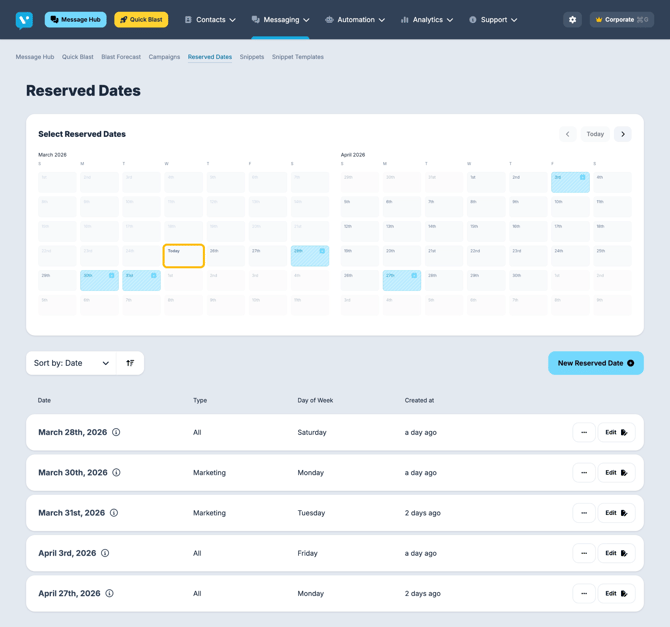
The Reserved Dates page has two views: a calendar at top for visual reference and a sortable list below with columns for Date, Type, Day of Week, and Created At.
- Navigate to Messaging > Reserved Dates from the Blast Forecast Dashboard sidebar
- Reserved dates show a striped pattern indicator in the calendar
- Use the list to search, sort, and manage individual dates
Creating a New Reserved Date
You can reserve a date in three ways: from the Reserved Dates list page, from the Campaign Form, or from Quick Blast.
From the Reserved Dates List Page:
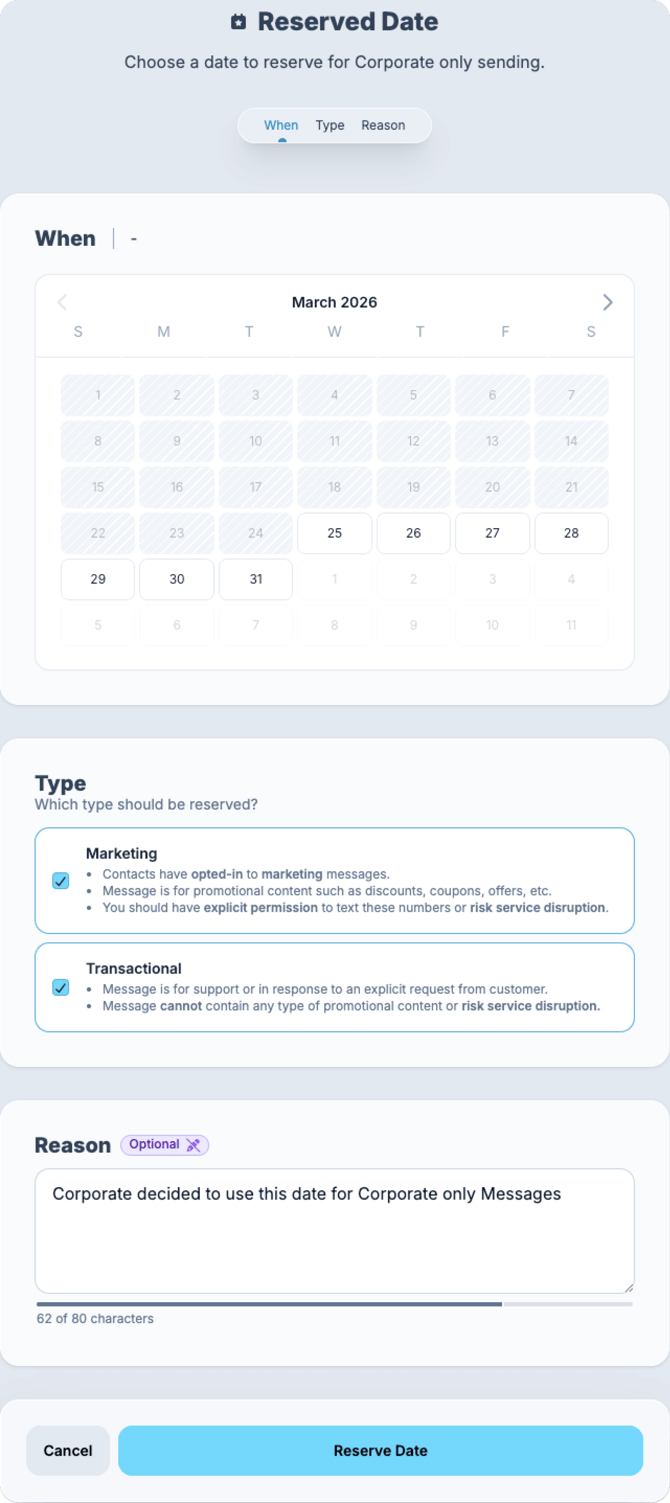
- Click New Reserved Date button in the top-right area
- Select a date from the calendar picker
- Choose message types to block: Marketing (promotional), Transactional (support/response), or both
- Optionally add a Reason to explain why (shown to franchisees when they encounter the blocked date)
- Click Reserve Date
The date is instantly blocked across all franchisee calendars.
From Campaign Form or Quick Blast:
- Open a Campaign Form or Quick Blast
- Toggle Reserve this date to ON
- Optionally add a Reason
- Date is reserved when the campaign is saved
Editing a Reserved Date
- Find the reserved date in the list view
- Click Edit on the row
- Select a new date if needed using the calendar picker
- Click Update to save changes
Setting Existing Franchisee Campaigns to Draft
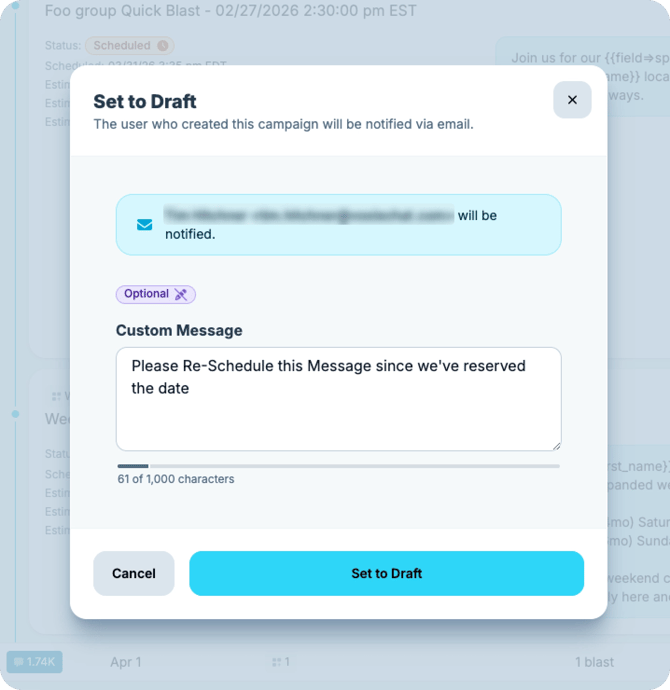
If franchisees already have campaigns scheduled on a date you are reserving, you will see a Set to Draft confirmation modal:
- It shows which franchisee user will be notified via email
- You can optionally add a Custom Message explaining why (e.g., "National Double Points campaign on this date")
- Click Set to Draft to proceed — the franchisee's campaign reverts to Draft and they receive the notification
Deleting a Reserved Date
If plans change and you no longer need to block a date:
- Find the reserved date in the list view
- Click the ... menu on the row
- Select Delete
- The date is immediately unblocked for franchisees
For Franchisees
What You Will See
When Corporate reserves a date, it affects your campaign scheduling:
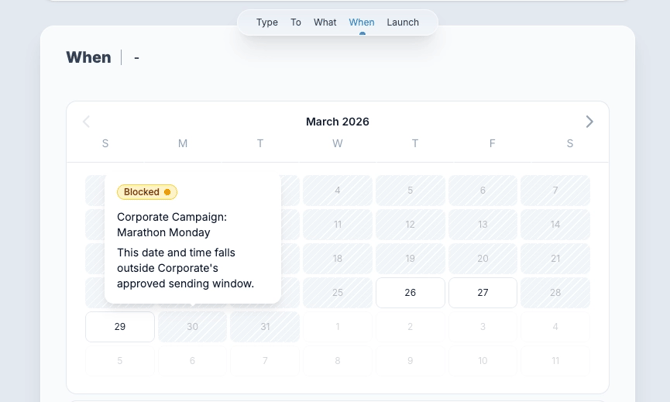
- In the scheduling calendar: Reserved dates appear grayed out and cannot be selected
- Custom reason displayed: If Corporate provided a reason, you will see it when hovering over the date
- Default message: If no custom reason was provided: "This date has been reserved by Corporate."
Impact on Already-Scheduled Campaigns
If you already have a campaign scheduled on a date that Corporate later reserves:
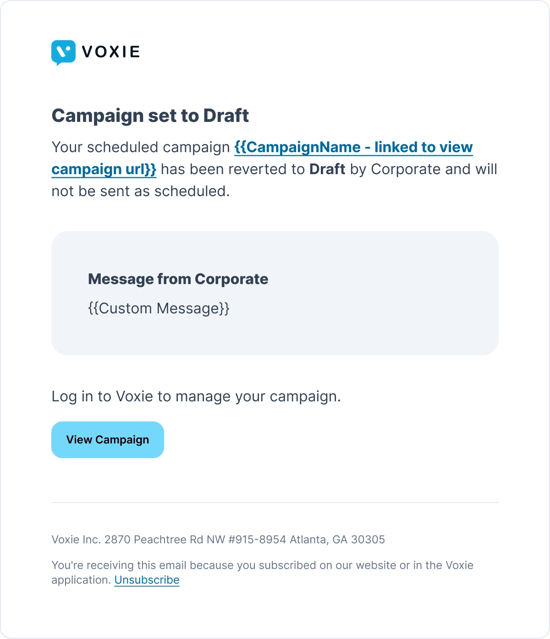
- Campaign is automatically reverted to Draft status
- You receive an email notification explaining the change
- The email includes a link to view the affected campaign so you can reschedule
Blast Forecast Integration
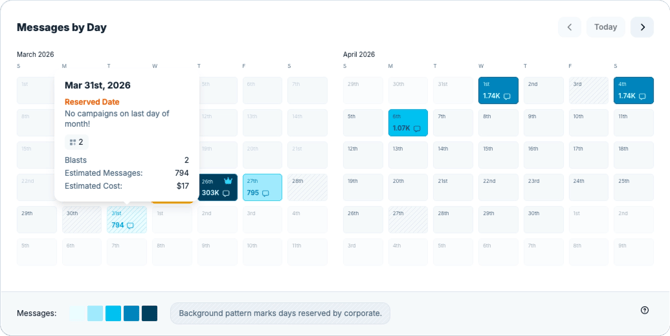
Reserved dates are visible within the Blast Forecast Dashboard:
- Calendar View: Striped pattern indicator at the bottom of reserved date cells
- Timeline View (Day Row): Reserved date indicators on relevant day rows
- Timeline View (Blast Row): Individual blast rows show reserved date status
Key Details and Tips
- Block by message type: Reserve for Marketing only, Transactional only, or both. Block Marketing sends but still allow order confirmations.
- Instant enforcement: Takes effect immediately across all franchise locations.
- Reason field: Optional but recommended. Franchisees appreciate knowing why a date is blocked.
- Custom reasons display in date picker instead of generic message.
- Plan ahead: Reserve dates 2+ weeks in advance when possible.
- Part of Brand Standards: Works alongside content rules, frequency limits, and audience restrictions.
Common Use Cases
- National promotional campaigns: Double Points days, seasonal offers, monthly marketing calendar
- Holiday marketing: Black Friday, Mother's Day, Valentine's Day
- New product launches: Corporate-driven announcements
- Brand fund initiatives: Campaigns funded by collective franchisee contributions
FAQ
Can franchisees override a reserved date?
No. Reserved dates are enforced at the platform level.
What if a franchisee already has a campaign scheduled on a newly reserved date?
The campaign is automatically reverted to Draft and they receive an email notification.
Can I reserve a date for only certain locations?
Currently, reserved dates apply to all franchisee locations under the corporate account.
Where is Reserved Dates in the navigation?
Under Brand Standards in the sidebar, accessible from the Blast Forecast Dashboard.